top of page


Bright Referral Featured on EPIC4’s Straight Talk Podcast
Bright Referral co-founder Liz Sudit joins EPIC4’s Straight Talk podcast to discuss dental referral tracking, stronger provider relationships, and predictable practice growth.
3 min read


*New Feature Alert*: Patient Search
We know your time is valuable. That’s why we’re always looking for ways to make Bright Referral easier, faster, and more efficient to use. Introducing our new Activity Feed search feature! Now, you can find the patient you’re looking for with just a few keystrokes. Search Smarter, Not Harder Need to find a specific patient but don’t want to scroll through your entire activity feed? No problem! With our new search functionality, you can search by a patient’s first name or last
1 min read
*New Feature Alert*: Enterprise Access
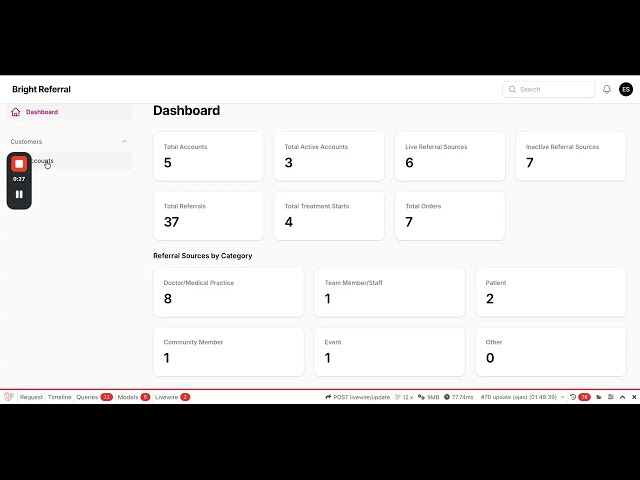
Introducing Enterprise Access: A Smarter Way to Manage Your Accounts As organizations grow, so does the challenge of keeping track of what's happening across multiple practices and locations. Logging into individual accounts, piecing together reports, and trying to understand referral performance at a high level can quickly become time-consuming. That's why we're excited to introduce Enterprise Access—a new way for enterprise organizations, DSOs, and multi-location groups to
2 min read

*New Feature Alert*: Track Teatment Starts
For years, practices have asked the same question: "Which referral sources are actually growing my practice?" Counting referrals is only part of the story. A referral doesn't create value until a patient begins treatment. That's why we're excited to introduce one of Bright Referral's most impactful updates yet: Treatment Start Tracking. For the first time, you can follow every referral through the complete patient journey—from referral to treatment start—giving you a clearer
2 min read
*New Feature Alert*: Updated Reporting
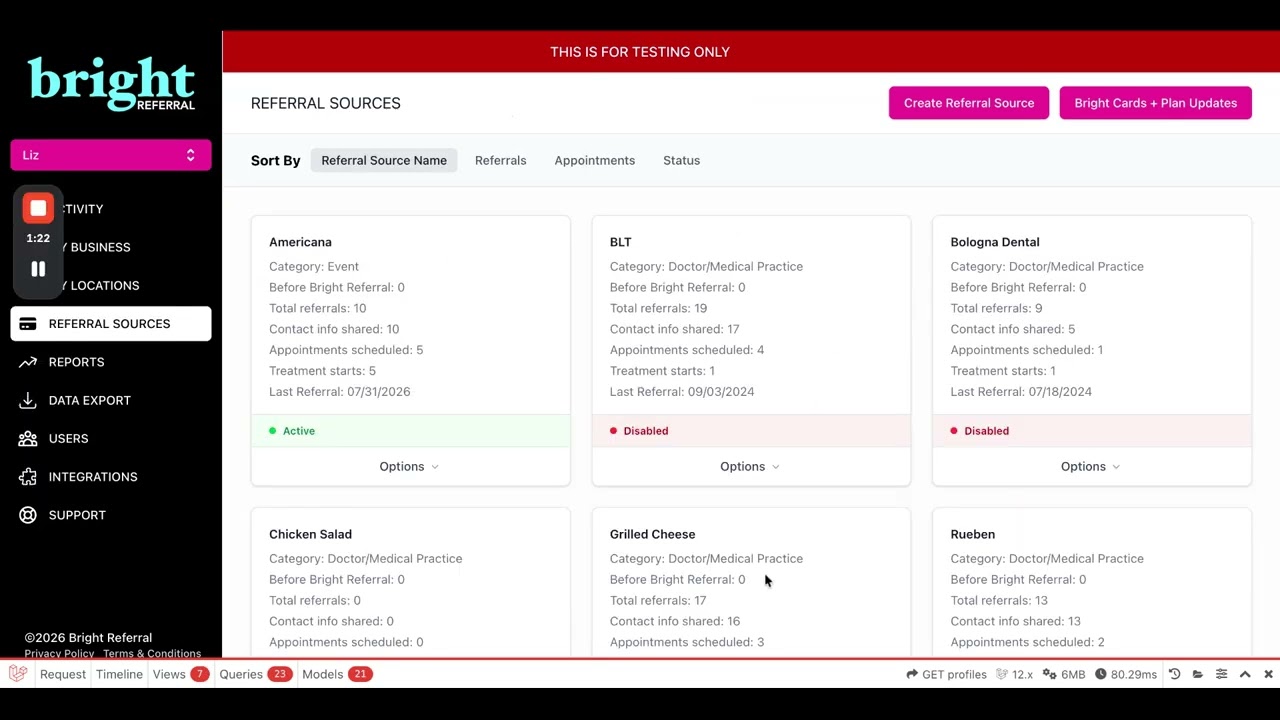
Our new, more powerful reporting to help you grow smarter Tracking referrals is important. Understanding which referral sources are driving real patient starts is even more valuable. That's why we've introduced a major upgrade to Bright Referral's reporting experience. With more detailed analytics, interactive charts, and expanded referral source insights, it's easier than ever to measure referral source health and make informed decisions about your relationship-building effo
2 min read
*New Feature Alert*: A smarter, simpler activity feed
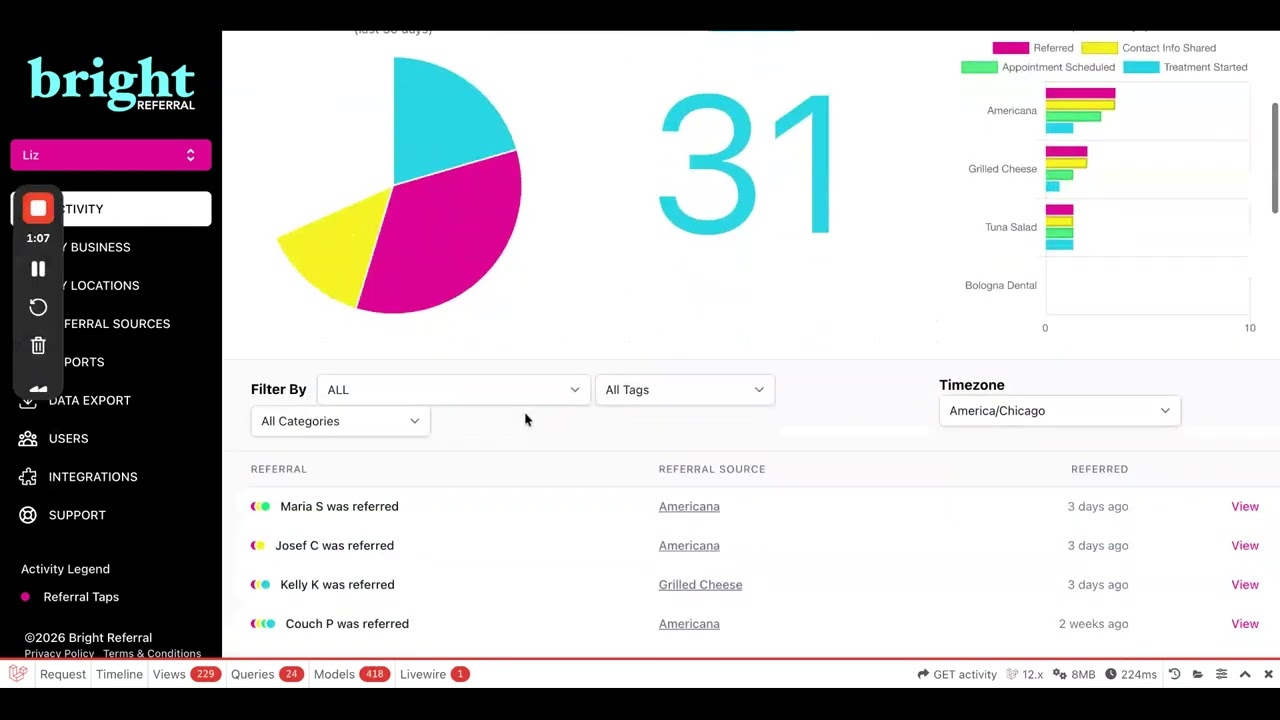
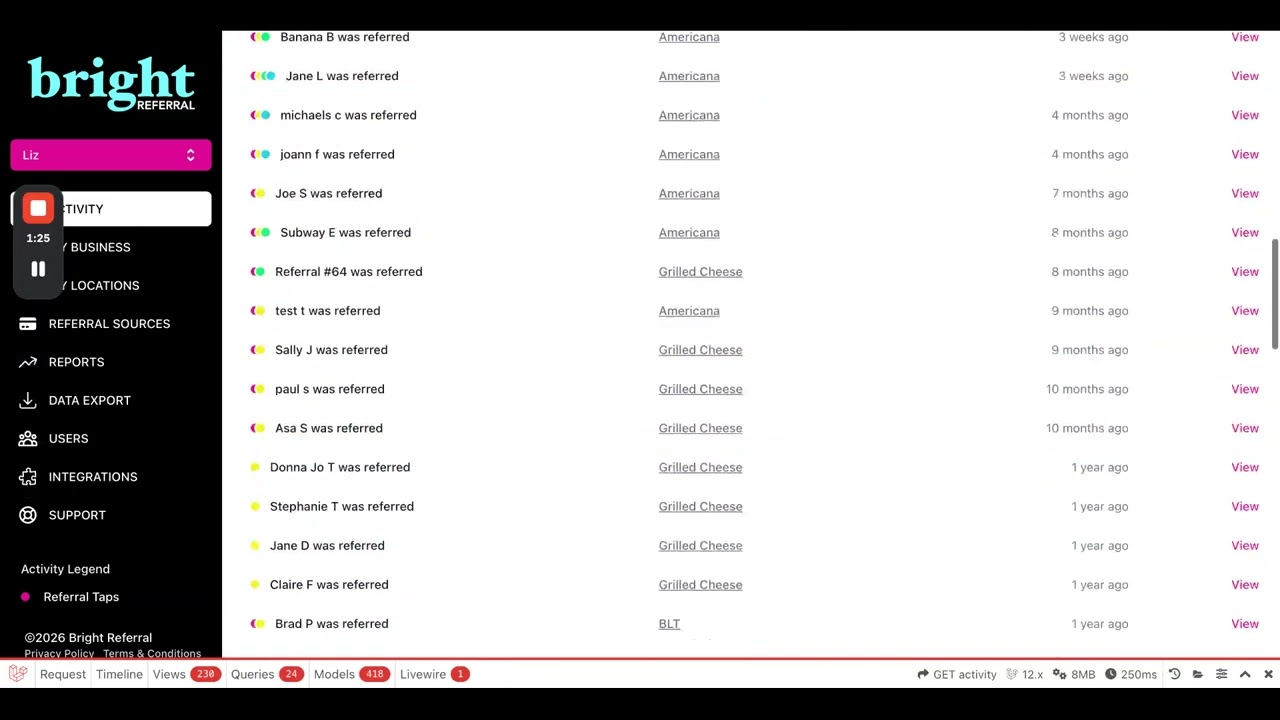
When you're managing referrals throughout the day, every second counts. You shouldn't have to click into every patient record just to understand where someone is in the referral process. That's why we've completely redesigned the Activity Feed in Bright Referral to make it faster, clearer, and easier to take action. With a streamlined layout, intuitive color-coded status indicators, and more powerful filtering, your dashboard now gives you an instant snapshot of every referra
2 min read
*New Feature Alert*: Edit Patient Information
Now you can edit patient information after a referral is submitted Every practice has experienced it. A referral comes in with limited information—or maybe there's a typo, a missing phone number, or a patient who needs a record updated after your team speaks with them. Until now, those situations often meant adding notes and hoping someone remembered to reference them later. Not anymore. We're excited to introduce Editable Patient Information, a new feature that allows your t
2 min read


*New Feature Alert*: Internal Referral Source Notes
Now you can keep internal notes for every referral source Strong referral relationships are built on the little things. Remembering an office manager's birthday. Keeping track of the last time you stopped by with lunch. Noting what made last year's community event a success. These small details help create stronger, more meaningful connections over time. That's why we're excited to introduce Referral Notes—a simple new feature that helps you keep important information organiz
2 min read


*New Feature Alert*: Patient Follow-up Toggle
Now you can customize patient follow-up for every referral source Not every referral works the same way—and now, your patient communication doesn't have to either. We're excited to introduce a new feature that gives practices more control over the patient experience by allowing you to enable or disable Bright Referral's automated patient follow-up email for each individual referral source. Check out the details here. More Flexibility for the Way You Use Bright Referral When a
2 min read

*New Feature Alert*: Updated Language and Design
New Design & Reporting Updates Make Bright Referral Easier to Understand at a Glance At Bright Referral, we're always looking for ways to make referral data more actionable. The best insights are the ones you can understand immediately, without digging through reports or trying to interpret charts. That's why we've rolled out a series of design, language, and reporting updates throughout the platform. While many of these changes may seem subtle individually, together they cre
2 min read


*New Feature Alert*: Referral Source names now included in email alerts
At Bright Referral, we're always looking for small improvements that make a big difference in your day-to-day workflow. That's why we're excited to announce a simple but powerful enhancement: new referral alert emails now include the name of the Referral Source who sent the patient. Know Exactly Who Sent the Referral When a new referral arrives, your email notification will now clearly identify the practice, provider, or team that referred the patient. Instead of opening Brig
2 min read


*New Feature Alert*: Easily identify unresponsive referrals with our new filter
One of the most common questions specialists ask is: "How many of my referrals actually scheduled an appointment?" Now, Bright Referral makes it even easier to find that answer. We're excited to introduce our new Unresponsive / Not Interested referral filter, designed to help you quickly identify patients who never followed through after receiving their referral. Better Visibility Into Referral Outcomes Not every referral results in an appointment. Patients may decide not to
2 min read


Who Should You Onboard First? A Practical Guide to Growing Your Referral Network with Bright Referral
Who Should You Onboard First? A Practical Guide to Growing Your Referral Network with Bright Referral
4 min read


How To Guide for Greyfinch
Taking advantage of this integration takes just a couple minutes. The instructions are included within your Bright Referral account, and here is a step-by-step visualization of the process. In your Referral Sources, Include the following fields in your contact forms as required fields. Click here to go to your Referral Sources page . First Name Last Name Email Date of Birth Go to your Greyfinch account and click on "settings" within your profile drop down in the top right co
1 min read


*New Integration Alert* GreyFinch!
Streamlining Referrals and Patient Management: Bright Referral + Grey Finch Bright Referral is proud to announce a powerful new integration with Greyfinch, a leading practice management platform built for orthodontists. This partnership brings together Bright Referral’s seamless digital referral and conversion system with Greyfinch’s innovative, all-in-one, cloud-based practice management solution. This gives practices an easier, faster, and more connected way to manage both
1 min read


How to Get Contact Information from Every Referral
(And Create a Better Experience for Patients, Too) One of the most common questions we hear from practices using Bright Referral is: “How do we get more patient contact information with each referral?” The good news: this is rarely a technology or patient experience problem. Most of the time, it’s a process and training opportunity —and one that’s very fixable. When referring offices understand how to refer and why sharing contact information helps their patients, completio
3 min read


*Podcast Feature* Jill Allen's Hey Docs!
Our Co-Founder Liz Sudit recently joined Jill Allen on her " Hey Docs" podcast! This episode is an honest conversation about one of the most overlooked growth opportunities in orthodontics: referral management. Throughout this episode, they focus on answering the questions that practices are all asking themselves - where do all the referrals go and what makes someone convert. Take a listen to hear how: Bright Referral was built to solve real, everyday challenges Outdated, m
1 min read


*New Feature Alert*: More Data Tracking
We've added some new features that are making Bright Referral EVEN MORE valuable! As a user, you now have the ability to include how many referrals you were receiving from a specific referral source prior to implementing Bright Referral! As you can see in the photo you will be able to use this as a baseline to track growth ! Making it easy to clearly see progress, measure success, and showcase the real impact of your referral efforts over time. Beyond that starting point, Bri
1 min read


New Partnership Alert: POP!
With a new year, comes new amazing opportunities! We are excited to introduce a brand new partnership with Premier Orthodontic Partners, (POP)! POP supports more than 400 orthodontic practices , actively introducing and recommending vetted solutions to their members as they grow their businesses. This partnership adds Bright Referral to the solutions made available through POP’s trusted network. As part of this partnership, POP members are eligible to receive a discount off
1 min read


Orthodontic Pearls Podcast Features Bright Referral
We’re excited to share that our co-founder, Dr. Geoff Sudit, was recently featured on the Orthodontic Pearls podcast. He gave a full behind-the-scenes look at how Bright Referral came to be. Dr. Sudit breaks down the frustrations that sparked our journey: disappearing paper slips, missed patient opportunities, and a referral process that offered zero visibility for specialists or GP partners. It was outdated, inefficient, and costing practices more than they realized. In th
1 min read
bottom of page